Creating an AI Music Video with ComfyUI and MiniMax H3 - The Pitfalls Behind Local Video Generation
The author documents a hands-on attempt to make a music-video-style YouTube Short using ComfyUI with MiniMax H3’s FastH3 workflow, Suno music, Audacity, and Premiere. On a home PC with an RTX 4060 Ti 16 GB GPU, the project took about a day and a half. The author spent substantial time setting up a clean portable ComfyUI environment and resolving issues involving embedded Python, model downloads, SageAttention compilation, CUDA paths, and a ComfyUI model-download bug.

Article Summary
The video workflow used an existing image as the first frame, but the subject’s appearance could drift as the prompt took over; details such as clothing needed to be described explicitly to improve consistency. The author generated 50 clips, generally targeting 18 seconds and taking just under 20 minutes each. This amounted to an estimated 16–17 hours of GPU compute, while the observation that generation seemed to grow faster for clips over 20 seconds was not rigorously measured. Suno’s track exceeded the Shorts duration limit, so it was shortened manually in Audacity. Premiere editing stayed simple and took less than an hour. The project showed that local generation on this GPU was practical for the author, while prompt drift and long waits remained significant constraints. As a follow-on, the author built an R2V Prompt Builder to make structured prompt creation and prompt-history management easier.
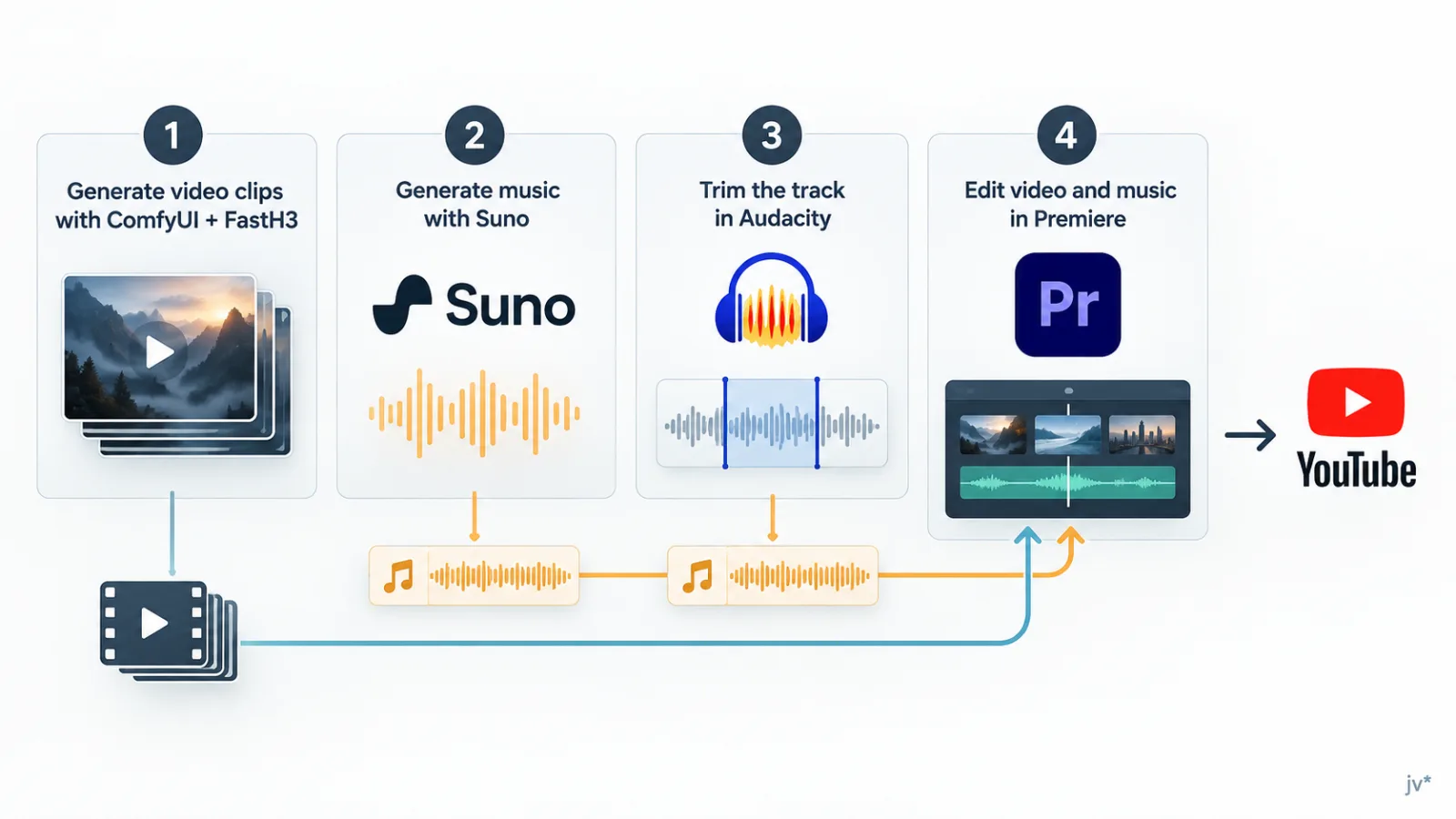
The project moved through four stages: generating clips in ComfyUI with FastH3, creating a track in Suno, trimming it in Audacity, then aligning the clips to the music in Premiere before publishing to YouTube.
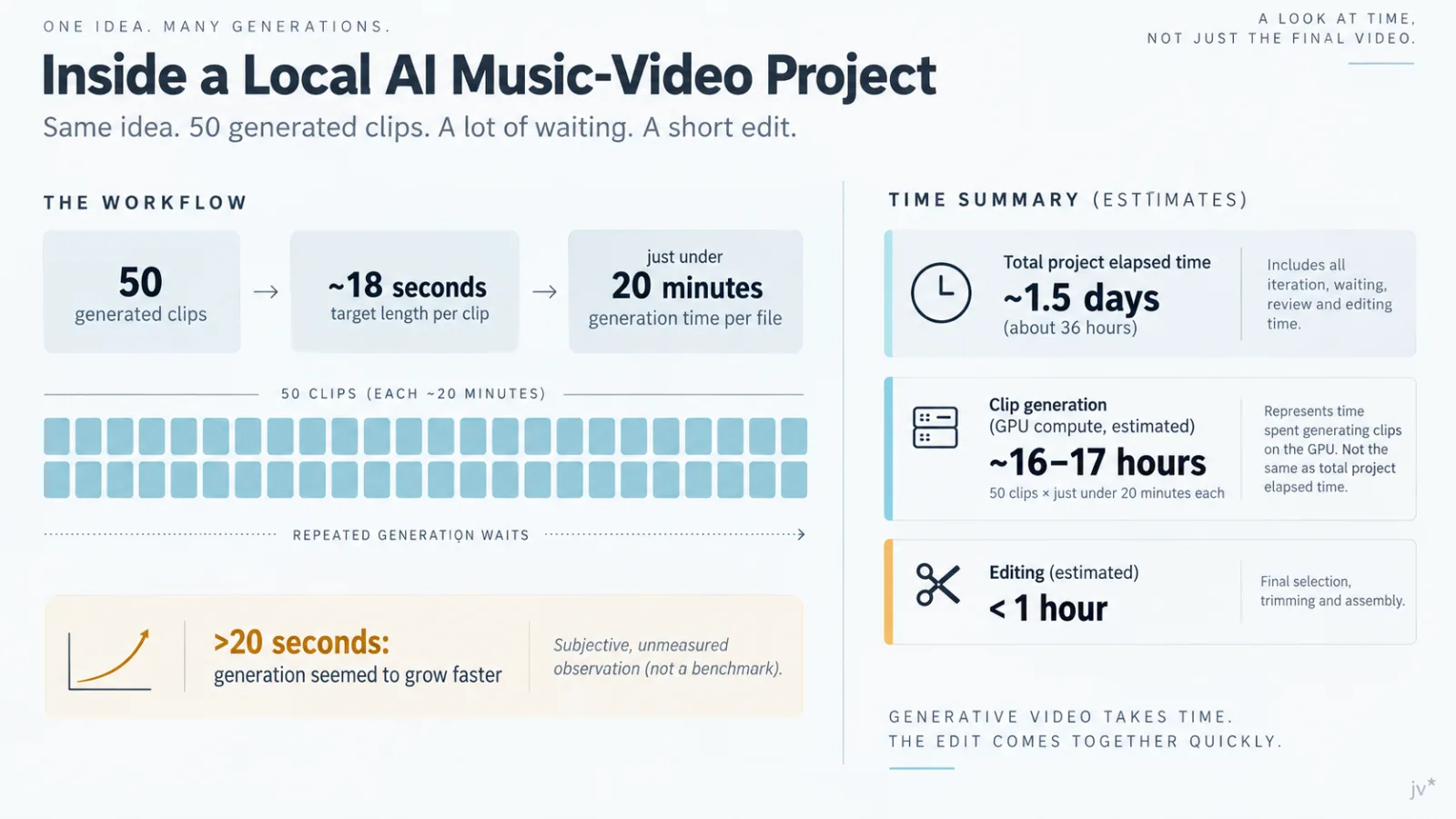
The largest time cost was generating footage: 50 clips targeted at 18 seconds each took just under 20 minutes per clip, or an estimated 16–17 hours of GPU compute. The whole project took about a day and a half, while editing took less than an hour.
Full Article
Recently, I generated videos using MiniMax H3 (specifically its fast distilled version, FastH3) inside ComfyUI, combined them with a track created in Suno, and uploaded it to YouTube as a music video-style Short. The total production time took about a day and a half. Discovering that generating a practical volume of AI video locally is now genuinely feasible was, honestly, a very exciting realization. In this article, I'll walk through the entire workflow and summarize the pitfalls I ran into along the way.
Generative AI tools are evolving every day, but first-hand information on "how far local GPUs can actually push it" and "how long you end up waiting" is surprisingly rare. Rather than a spec showcase, I hope you read this as a raw, real-world record of what happened when one middle-aged guy tried running it on his home machine (CPU: Ryzen 7 7800X3D, 32 GB RAM, GPU: RTX 4060 Ti 16GB VRAM).
Overall Production Workflow
The general flow consists of the following four steps:
- Generate video clips using ComfyUI + FastH3
- Generate music with Suno
- Trim the track in Audacity due to duration constraints
- Edit video and music in Premiere, then publish to YouTube
Let's break them down one by one.
Setting Up the Environment: Building a Clean Setup and Pitfalls Encountered
Why I Created a New Environment
I actually had ComfyUI installed previously. However, my impression of ComfyUI is that environments break easily as you add more and more custom nodes and models. So this time, I took the plunge and set up a fresh portable version (which includes embedded Python) from scratch as a dedicated environment for FastH3. I figured that taking a bit of extra effort to start clean would ultimately be faster than reusing an existing setup and sinking into dependency hell.
The advantage of the portable version is that ComfyUI and its dedicated Python environment are self-contained in a single folder, keeping your global Python and CUDA environments clean. Conversely, this also means tools already installed on your system might not work out of the box, which, as I’ll explain later, became a major source of headaches in unexpected ways.
Stumbling Right Away with Model Downloads
The files required for FastH3—the diffusion model (~22 GB), text encoder (~16 GB), and dual VAEs for video and audio—totaled over 40 GB, all needing to be downloaded from Hugging Face. This is where I hit my first roadblock. The hf command (the successor to huggingface-cli) crashed in ComfyUI's embedded Python environment due to a missing venv module, to the point where even --help wouldn't execute. Ultimately, I gave up on the CLI and switched to directly calling hf_hub_download() from huggingface_hub via a Python one-liner, finally completing the download.
*Note: If you simply download the files directly from the webpage and move them to the respective folders, you won't run into any issues at all.
As a side note, during this process, I accidentally pasted my API token along with the terminal output. I made sure to only set tokens temporarily as environment variables going forward and immediately revoked the exposed token. It was a good reminder that even in personal development, you can't be careless with credentials.
Another Trap: Installing SageAttention
To boost generation speed, I also installed SageAttention via triton-windows. SageAttention reduces the overall computational load by running Attention calculations with INT8-based quantization, boosting generation speed. While the concept itself is straightforward, installation was far from smooth, and I ran headfirst into a Python.h not found compilation error. The root cause was that ComfyUI's embeddable Python does not include header files required for building; you have to manually extract the separately distributed include/libs into the python_embeded folder. My initial extraction was incomplete, and I had to fix the file placement to resolve it. Around the same time, I noticed that an old CUDA Toolkit (v11.8) path had snuck into the Triton compilation command, forcing me to audit my CUDA_PATH environment variable as well. Once all of this was fixed, I confirmed a clear boost in generation speed.
Encountering a Known ComfyUI Bug
Furthermore, when using ComfyUI's "download missing models" feature, I ran into an issue where files that were supposed to be saved directly into the models folder were inexplicably dumped into the OS "Downloads" folder instead. Looking into it, I found this was reported as a known bug in the official ComfyUI repository, so I had to manually move the files to the correct folder.
Each issue on its own was minor, but combined, they quietly ate away a lot of time. I feel like I spent more time wrestling with environment setup up to this point than with the video generation itself. Looking back, almost all of these minor snags boiled down to a single root cause: "ComfyUI's embedded Python environment is subtly different from a standard Python environment." For anyone planning to try this setup, keep in mind that the convenience of the portable version comes with these specific gotchas.
Video Generation: The Official FastH3 Workflow and Numbers That Subtly Mattered
With the environment ready, I finally moved on to the main event: video generation. For the ComfyUI workflow, I used the official FastH3 workflow almost as-is. Rather than doing fancy customizations, my approach was to see how far I could get with the stock workflow first.
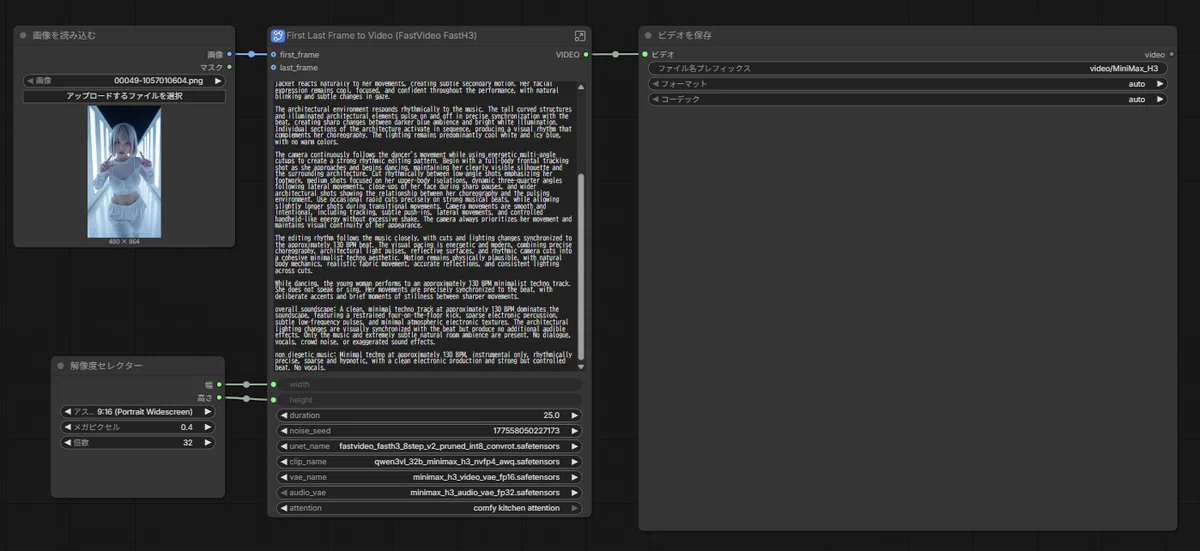
FastH3 standard workflow
The Constraint of First-Frame Injection: It's "Only the Starting Point"
For generation, I fed a previously generated image into the node as the first frame. I didn't create a new image specifically for this project, so being able to reuse existing assets was a major time-saver.
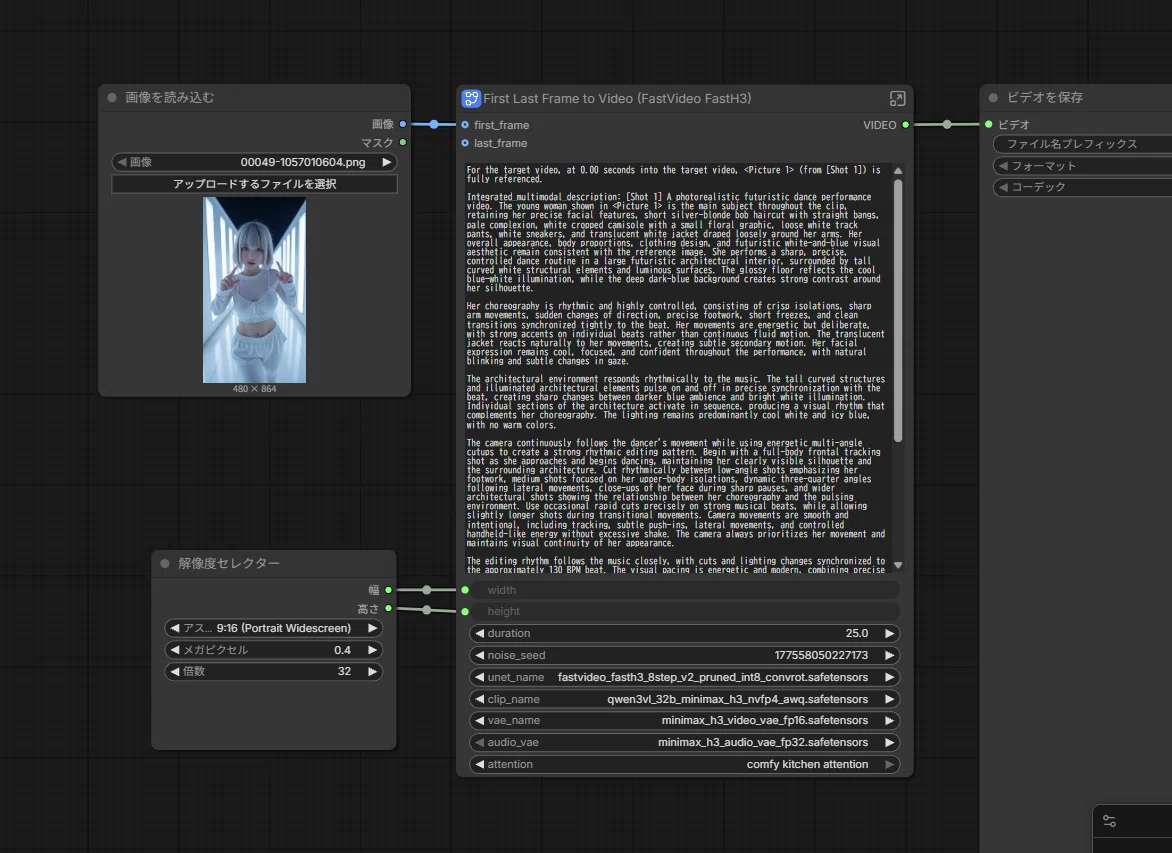
First frame specification and prompt section
However, trying this made me keenly aware that "the first frame is strictly just a starting point." As generation progressed, the output was easily dragged along by the text prompt, leading to frequent issues like outfits changing mid-video. In particular, this phenomenon seemed more likely to happen when the prompt didn't mention the color or shape of the clothing, or only described it vaguely. Conversely, I learned that any visual elements from the first frame you want to maintain must be explicitly—and almost obsessively—described in the prompt text.
For the target video, at 0.00 seconds into the target video, <Picture 1> (from [Shot 1]) is fully referenced.

Integrated_multimodal_description: [Shot 1] A photorealistic futuristic dance performance video. The young woman shown in <Picture 1> is the main subject throughout the clip, retaining her precise facial features, short silver-blonde bob haircut with straight bangs, pale complexion, white cropped camisole with a small floral graphic, loose white track pants, white sneakers, and translucent white jacket draped loosely around her arms. Her overall appearance, body proportions, clothing design, and futuristic white-and-blue visual aesthetic remain consistent with the reference image. She performs a sharp, precise, controlled dance routine in a large futuristic architectural interior, surrounded by tall curved white structural elements and luminous surfaces. The glossy floor reflects the cool blue-white illumination, while the deep dark-blue background creates strong contrast around her silhouette.

Her choreography is rhythmic and highly controlled, consisting of crisp isolations, sharp arm movements, sudden changes of direction, precise footwork, short freezes, and clean transitions synchronized tightly to the beat. Her movements are energetic but deliberate, with strong accents on individual beats rather than continuous fluid motion. The translucent jacket reacts naturally to her movements, creating subtle secondary motion. Her facial expression remains cool, focused, and confident throughout the performance, with natural blinking and subtle changes in gaze.

The architectural environment responds rhythmically to the music. The tall curved structures and illuminated architectural elements pulse on and off in precise synchronization with the beat, creating sharp changes between darker blue ambience and bright white illumination. Individual sections of the architecture activate in sequence, producing a visual rhythm that complements her choreography. The lighting remains predominantly cool white and icy blue, with no warm colors.

The camera continuously follows the dancer's movement while using energetic multi-angle cutups to create a strong rhythmic editing pattern. Begin with a full-body frontal tracking shot as she approaches and begins dancing, maintaining her clearly visible silhouette and the surrounding architecture. Cut rhythmically between low-angle shots emphasizing her footwork, medium shots focused on her upper-body isolations, dynamic three-quarter angles following lateral movements, close-ups of her face during sharp pauses, and wider architectural shots showing the relationship between her choreography and the pulsing environment. Use occasional rapid cuts precisely on strong musical beats, while allowing slightly longer shots during transitional movements. Camera movements are smooth and intentional, including tracking, subtle push-ins, lateral movements, and controlled handheld-like energy without excessive shake. The camera always prioritizes her movement and maintains visual continuity of her appearance.

The editing rhythm follows the music closely, with cuts and lighting changes synchronized to the approximately 130 BPM beat. The visual pacing is energetic and modern, combining precise choreography, architectural light pulses, reflective surfaces, and rhythmic camera cuts into a cohesive minimalist techno aesthetic. Motion remains physically plausible, with natural body mechanics, realistic fabric movement, accurate reflections, and consistent lighting across cuts.

While dancing, the young woman performs to an approximately 130 BPM minimalist techno track. She does not speak or sing. Her movements are precisely synchronized to the beat, with deliberate accents and brief moments of stillness between sharper movements.

overall_soundscape: A clean, minimal techno track at approximately 130 BPM dominates the soundscape, featuring a restrained four-on-the-floor kick, sparse electronic percussion, subtle low-frequency pulses, and minimal atmospheric electronic textures. The architectural lighting changes are visually synchronized with the beat but produce no additional audible effects. Only the music and extremely subtle natural room ambience are present. No dialogue, vocals, crowd noise, or exaggerated sound effects.

non_diegetic_music: Minimal techno at approximately 130 BPM, instrumental only, rhythmically precise, sparse and hypnotic, with a clean electronic production and strong but controlled beat. No vocals.50本・約20分/本、という生成コストの実際
The above is the prompt used for video generation.
In the end, I used 50 video files as raw material. Generally, each was generated with a target length of 18 seconds, taking just under 20 minutes per file. By simple math, generating 50 files alone accounts for roughly 16 to 17 hours of GPU compute time. While the overall project felt like it took "a day and a half," the vast majority of that time was spent waiting for generation. Compared to the editing process, which took less than an hour, these numbers highlight just how heavily weighted the generation process is.
In my experience, up to around 15 seconds, a rough rule of thumb of "1 minute of generation per 1 second of video" generally holds true. However, once you exceed 20 seconds, generation times seemed to grow noticeably faster. I suspect this is because the computational cost of Attention scales more than linearly as frame counts increase, but to be honest, I didn't measure this rigorously, so please take it as a subjective observation. When planning longer videos, it's best to build a buffer into your schedule to account for this non-linear scaling.
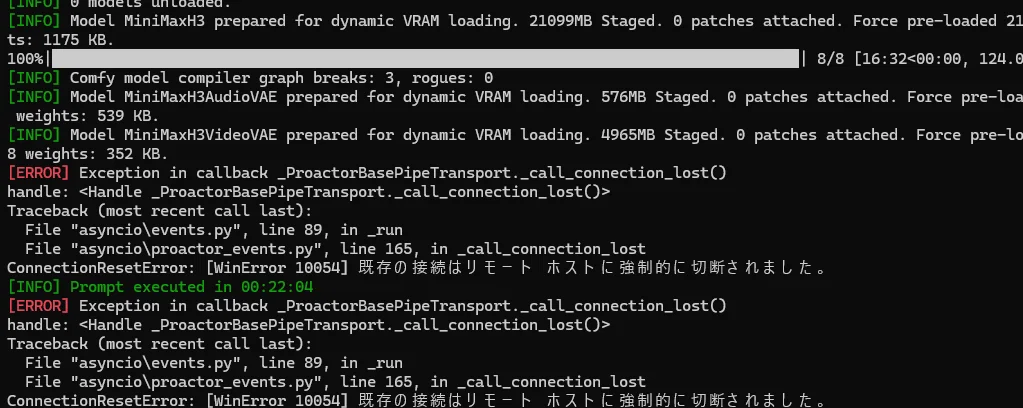
This long wait time also means that operational tricks—like working on other tasks in parallel between generations, or running batches while sleeping or away—are practically essential. Even for models touted as "blazing fast," producing videos at scale demands a fair amount of planning. That was something I only truly appreciated once I tried it myself.
Looking back at this sheer volume—50 clips at 18 seconds each, plus all the failed retries—I can't help but wonder what would have happened if I'd used a cloud-based SaaS video generation service like Seedance. If I had gone through that much trial and error on a pay-per-use service, the meter would have been constantly ringing up costs, which frankly terrifies me. The effort required to set up a local environment is undeniably high, but being able to regenerate as many times as you want without any additional cost beyond electricity feels like a huge, understated advantage.
A Subtle Win: BPM Specification Reflected in the Tempo
I was pleasantly surprised to find that specifying a BPM (130) resulted in video movements and cuts that reflected that tempo relatively accurately. Gaining the sense that I could control the visual rhythm to match the music to some degree was one of the key takeaways from this project. It's not a flashy feature, but for music video creation, it makes a subtle yet meaningful difference.
Music: Trimming the Suno-Generated Track to Fit the Duration
I generated the track using Suno. However, the generated track turned out to be over three minutes long, exceeding the three-minute limit for YouTube Shorts. I manually edited it in Audacity while inspecting the waveform, trimming it down into the two-minute range. It was an obvious yet tangible lesson: even with AI-generated assets, adjusting content to fit platform constraints ultimately falls back on manual effort.
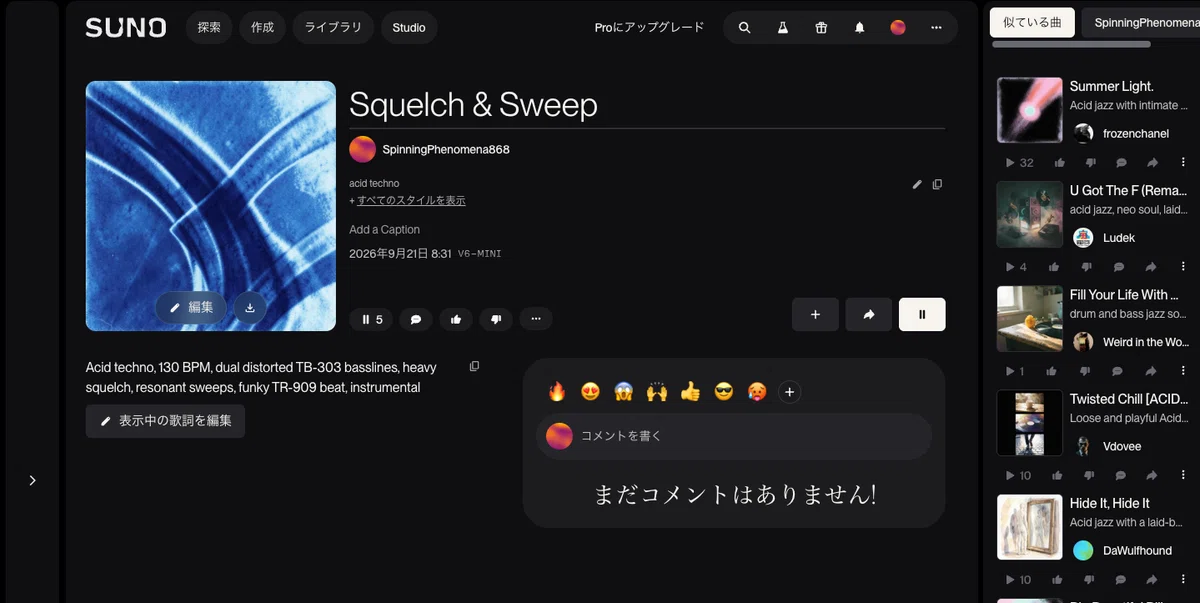
Page for the music track created in Suno
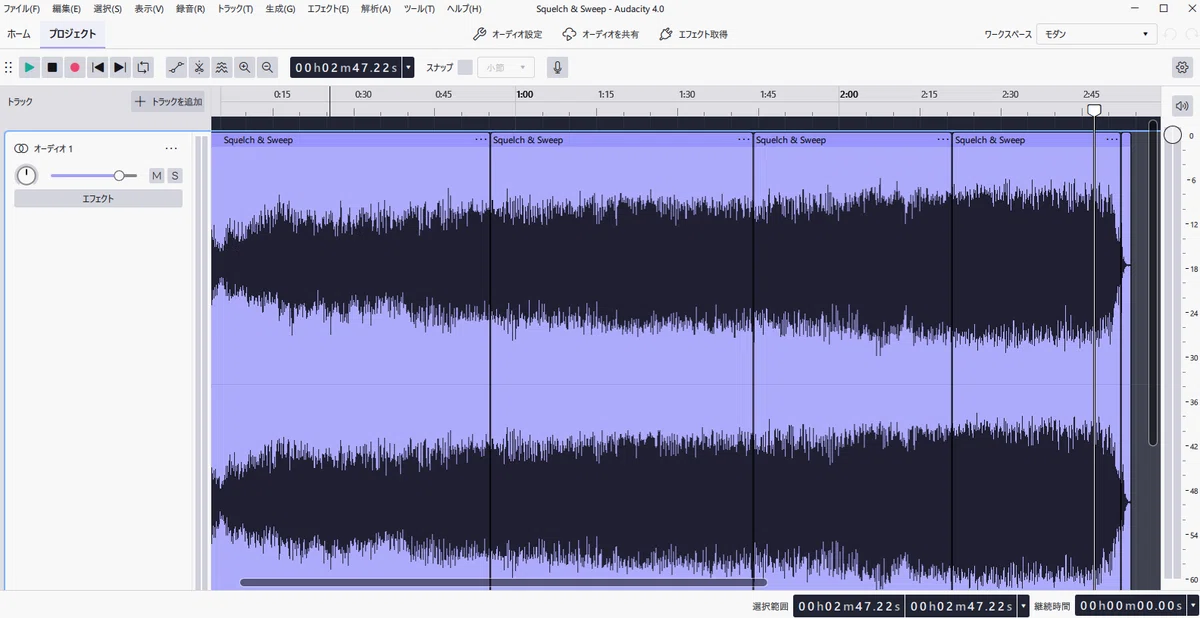
Waveform editing in Audacity
Editing: Keeping Things Simple in Premiere
For editing in Premiere, I kept things simple by just cutting and aligning each generated clip to the timing of the music. Rather than going heavy on fancy transitions or effects, I opted to rely on the quality of the raw footage and the sense of tempo. As a result, the editing process itself took less than an hour. Since generation takes so long, keeping the editing phase lightweight felt like the right balance.
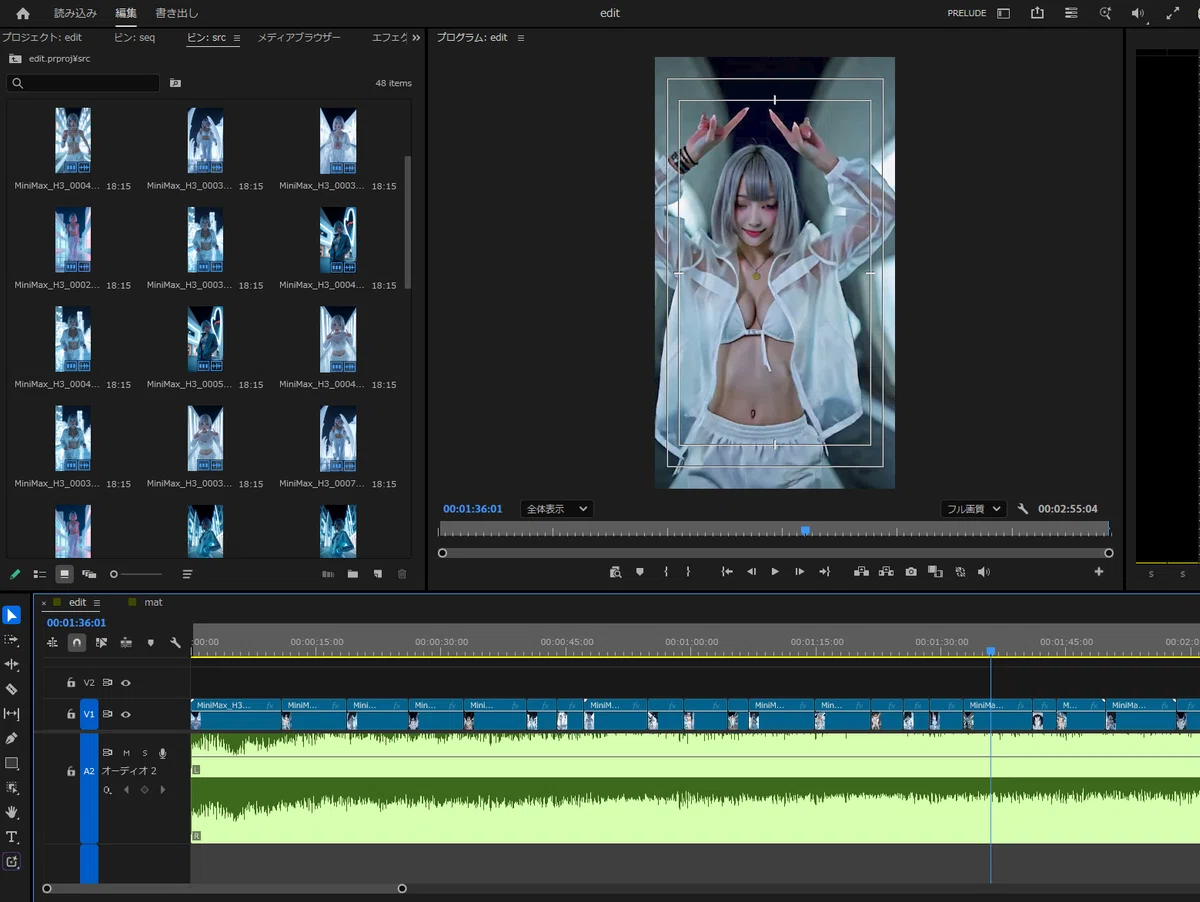
Premiere editing screen
Summary
The total production time was roughly a day and a half. Breaking it down, the bulk of the time was spent troubleshooting the environment setup and waiting on video generation (including wait times for 50 files plus trial and error with first frames and prompts), while music trimming and editing were completed quite quickly.
My biggest takeaway this time was realizing that even on a mid-range local GPU (RTX 4060 Ti), this entire production workflow can be completed within a practical timeframe. On the other hand, the deep-seated issue of losing subject consistency due to prompt drift remains tough, and even as I write this article, I'm still working on improving it. Next, I'd like to try Reference-to-Video Audio workflows to attempt generation with tighter coupling between audio and character consistency.
Addendum: A Byproduct Born from This Project
After finishing up this music video project, I installed MiniMax H3's Reference-to-Video (R2V) feature to try it out next. While the workflow itself wasn't overly complex, R2V requires you to explicitly specify reference images, audio, and other information as tags directly inside the prompt text, in addition to node connections. Manually writing out the reference descriptions every single time was immensely tedious, so I decided it would be better to automate it and built a web app for constructing prompts.
Once I started building it, I realized that this same pain point applies when writing descriptions for using images as references in FastH3 or Qwen-Image, or even when scripting scene settings into prompts from scratch, so I expanded its scope. Additionally, I found myself wanting to manage past prompts as a history log rather than treating what I wrote as disposable after each generation, so I added that feature as well.
**MiniMax H3 R2V Prompt Builder
**https://mmh3-r2v-prompt-builder.pages.dev/
It's designed so that you enter subject and scene information by section, specify whether reference assets exist and their intended purpose, and an LLM (via the Gemini API) generates the final prompt following the tagging rules. Turning a moment of "this is so tedious" directly into the trigger for my next creation was an interesting turn of events for me personally.